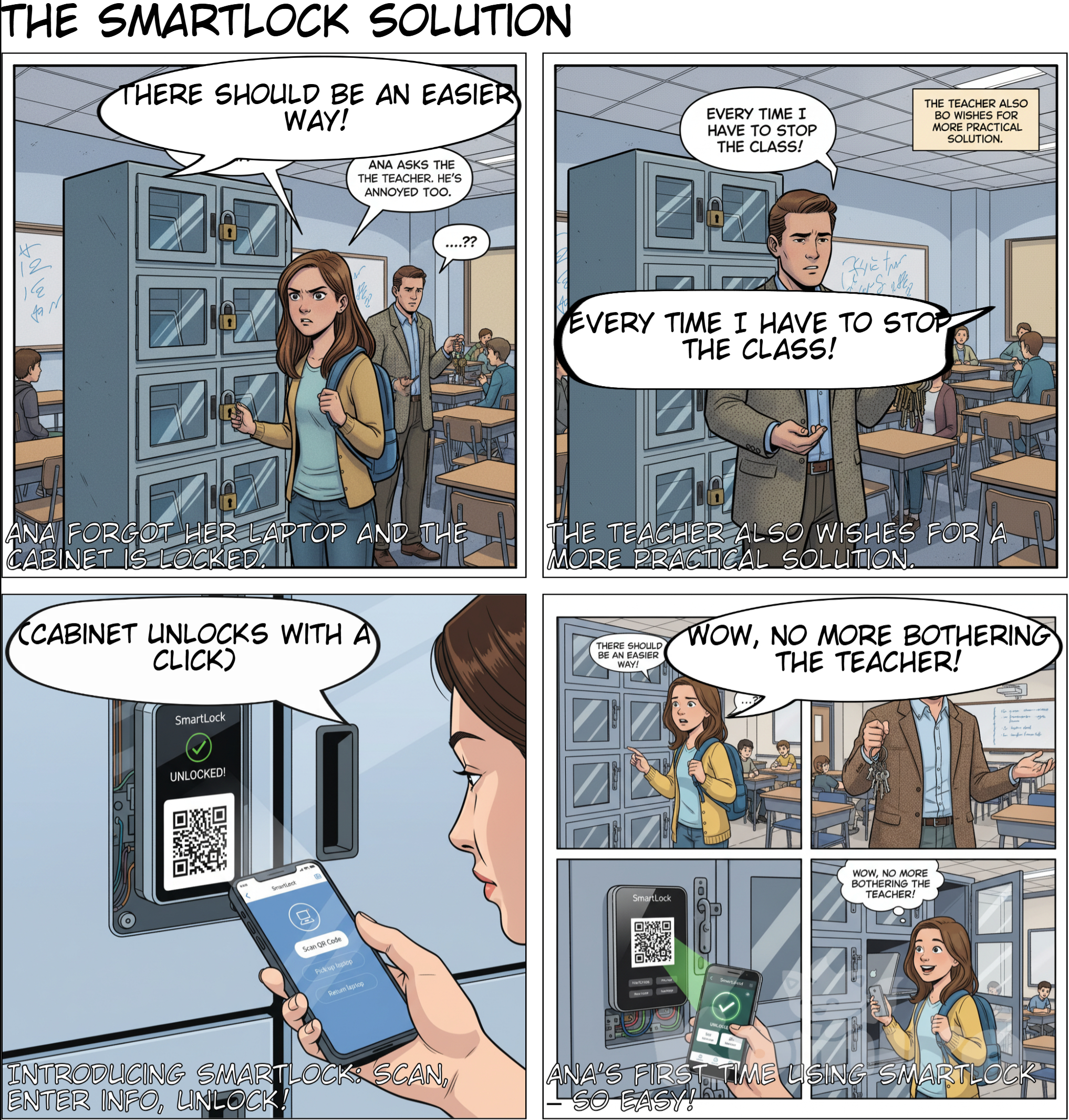
AIアート: 1st Panel: A girl in a classroom forgot to bring her laptop and goes to the laptop cabinet to get one, but it’s locked. She thinks, “There should be an easier way to get the laptops.” 2nd Panel: The girl asks the teacher to open the cabinet to get a laptop. The teacher thinks, “Every time I have to stop the class to get the laptops… there should be a more practical way for students to do this.” 3rd Panel: Presentation of SmartLock (how it works: scan the QR code, enter your information, and the cabinet unlocks). 4th Panel – First use of SmartLock The girl opens the app on her phone → chooses the option “Pick up laptop.” App screen: quick login (RF1) and authentication via QR Code (RF2). 💭 “Wow, I don’t need to bother the teacher anymore.” 5th Panel – Locker in action She scans the QR Code on the cabinet → the locker opens automatically (RF14). 📦 The system records date, time, and user (RF3). 💭 “Much faster than before!” 6th Panel – Relieved teacher The teacher sees on the system dashboard: “Laptop picked up by Ana at 09:15” (RF3). 💭 “Now I don’t need to stop the class anymore. Automatic digital control!” 7th Panel – Real-time monitoring Screen shows inventory: “Available: 19/20 laptops” (RF5). Teachers and administrators can see real-time status and active users (RF10). 8th Panel – Notification and security On Ana’s phone: “Return due: 7 days – reminder will be sent” (RF11). 💭 “Perfect! This way I won’t forget to return it.” 9th Panel – Easy return Ana returns the laptop → scans the QR Code again → locker records return date/time (RF4). Screen shows: “Item successfully returned.” 10th Panel – Reports and expansion Administrator opens the dashboard and sees usage graphs, exportable reports in PDF/Excel (RF9, RF15). 💭 “I can use the same system in libraries, coworking spaces, or even government offices!”
制作した人 fluffy marshmallow
コンテンツ詳細
メディア情報
ユーザーの操作
このAI作品について
説明
作成プロンプト
エンゲージメント

fluffy marshmallow
fluffy marshmallow
1st Panel: A girl in a classroom forgot to bring her laptop and goes to the laptop cabinet to get one, but it’s locked. She thinks, “There should be an easier way to get the laptops.” 2nd Panel: The girl asks the teacher to open the cabinet to get a laptop. The teacher thinks, “Every time I have to stop the class to get the laptops… there should be a more practical way for students to do this.” 3rd Panel: Presentation of SmartLock (how it works: scan the QR code, enter your information, and the cabinet unlocks). 4th Panel – First use of SmartLock The girl opens the app on her phone → chooses the option “Pick up laptop.” App screen: quick login (RF1) and authentication via QR Code (RF2). 💭 “Wow, I don’t need to bother the teacher anymore.” 5th Panel – Locker in action She scans the QR Code on the cabinet → the locker opens automatically (RF14). 📦 The system records date, time, and user (RF3). 💭 “Much faster than before!” 6th Panel – Relieved teacher The teacher sees on the system dashboard: “Laptop picked up by Ana at 09:15” (RF3). 💭 “Now I don’t need to stop the class anymore. Automatic digital control!” 7th Panel – Real-time monitoring Screen shows inventory: “Available: 19/20 laptops” (RF5). Teachers and administrators can see real-time status and active users (RF10). 8th Panel – Notification and security On Ana’s phone: “Return due: 7 days – reminder will be sent” (RF11). 💭 “Perfect! This way I won’t forget to return it.” 9th Panel – Easy return Ana returns the laptop → scans the QR Code again → locker records return date/time (RF4). Screen shows: “Item successfully returned.” 10th Panel – Reports and expansion Administrator opens the dashboard and sees usage graphs, exportable reports in PDF/Excel (RF9, RF15). 💭 “I can use the same system in libraries, coworking spaces, or even government offices!”
6 months ago